-1.jpg?width=276&height=100&name=APPA%20Logo%20R%204c%20(1)-1.jpg)
Adjust Settings in Calculations Tab
After generating a data table, click on the Calculations tab at the top of the page to view and edit calculation settings. The platform supports calculation customization for standard calculations, base size, significance testing, benchmarking, ranking, and computed variables.
Standard Calculations
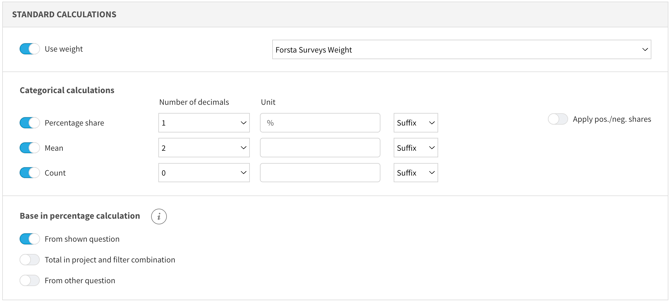
- Use Weight to balance the data.
- This feature allows you to adjust the weight for over- or under-represented groups in the survey sample.
- Use the toggle to enable weight calculations.
- Use the drop-down to select the variable for your weight calculations.
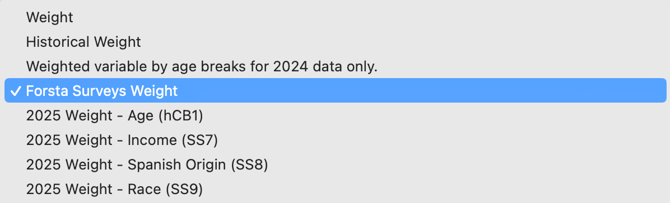
- Opt to display percentage share, mean, and count within your table.
- Specify the number of decimal places you'd like to display for each of the standard calculations.
- Use the Unit box to specify a symbol as a suffix or prefix for the calculation. For example, % as a suffix for mean calculations.
- Edit which base is used for calculations.
- This feature allows you to change which base is used for your calculations. By default, it will use the base for the selected question.
- If you need to use a different base for your question, you can either use the total number of respondents as base or select a specific question and use that question as base.
- This can be applied to many scenarios, but a common use case is to calculate the percentage of purchases among everyone who has answered the awareness question.
- Once a different base has been selected, this base will be used for all percentage calculations within the object. (Significance test, base suppressions, mean value series, etc.)
- Note: you can’t rebase index questions.
Base Size Options
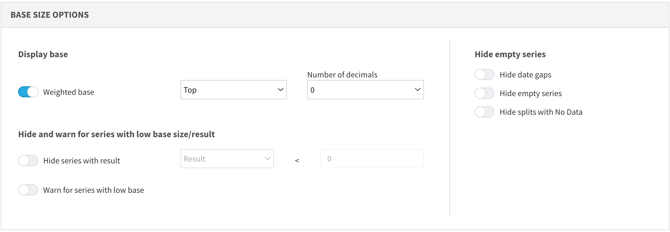
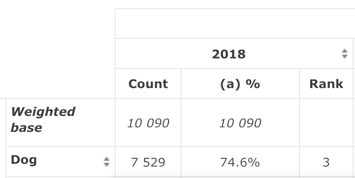
- Use the toggle to display the base. You can choose to have it displayed at the top or bottom of the table. This example shows the Weighted Base displayed at the top of the table.
- Enable warnings or hide low-base results
- The hide series with result setting allows you to hide series with a result or a count below a number you specify.
- The warn for series with low base setting allows you to set a limit for when the results will warn you that the weighted or unweighted base is below the limit you set.
- Use the toggles on the right to hide empty series. You can specify if you'd like to hide date gaps, empty series, or splits with no data.
Significance Testing
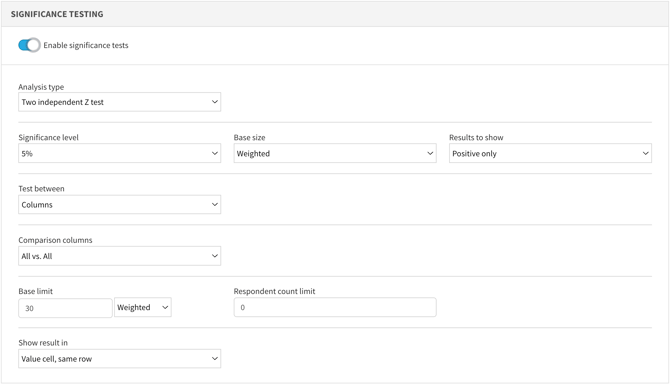
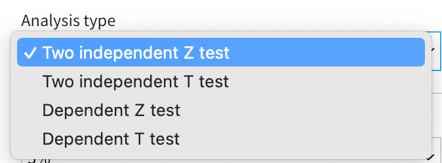
- Select the analysis type: two independent Z test, two independent T test, dependent Z test, dependent T test
- Significance level: choose from 10% (90% confidence level), 5% (95% confidence level), or 1% (99% confidence level)
- Select if you'd like to test for positive differences, negative differences or both.
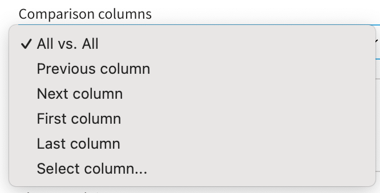
- Indicate if you're testing between columns or rows, then specify the comparison columns/rows.
- Set a limit for the weighted or unweighted base size (by default we use n=30)
- Determine where to show the result on your table.
Benchmark
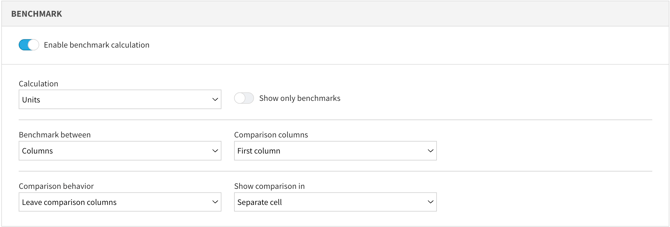
- Use the toggle to enable a benchmark calculation.
- Select the calculation type: units, percentage share, index/conversion rate
- Indicate whether you're benchmarking between columns or rows, then specify the comparison columns/rows and the comparison behavior.
Rank
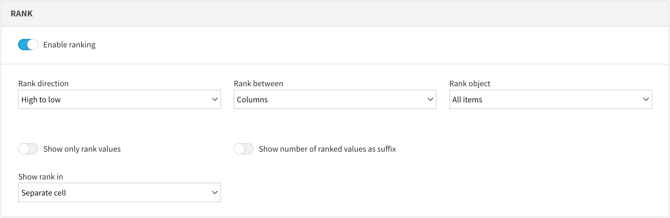
- Use the toggle to enable ranking your data.
- Indicate the rank direction: high to low; low to high
- Use rank between columns to rank between survey waves. Use rank between rows to rank responses within a wave.
- Use the settings to display the ranking within the cell or in a separate cell.
Compute Variables
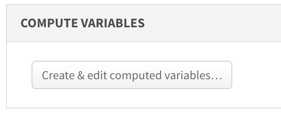
- Use this feature to create custom variables to define new segments and target groups.
- Click the button to create and edit computed variables
- The computed variables you create can be applied in rows or columns, but they cannot be used as filters.
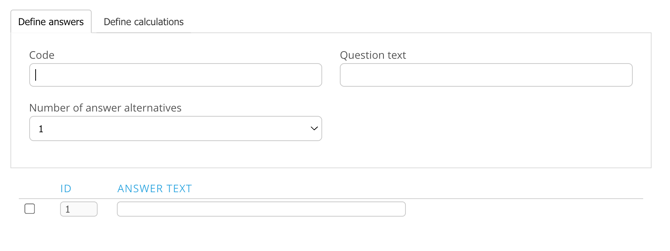
- Define the answers and calculations you'd like to use.